Kingdom Architect Tycoon Mobile Controls Guide
Touch-friendly building and collection for the medieval tycoon beta on iOS and Android.
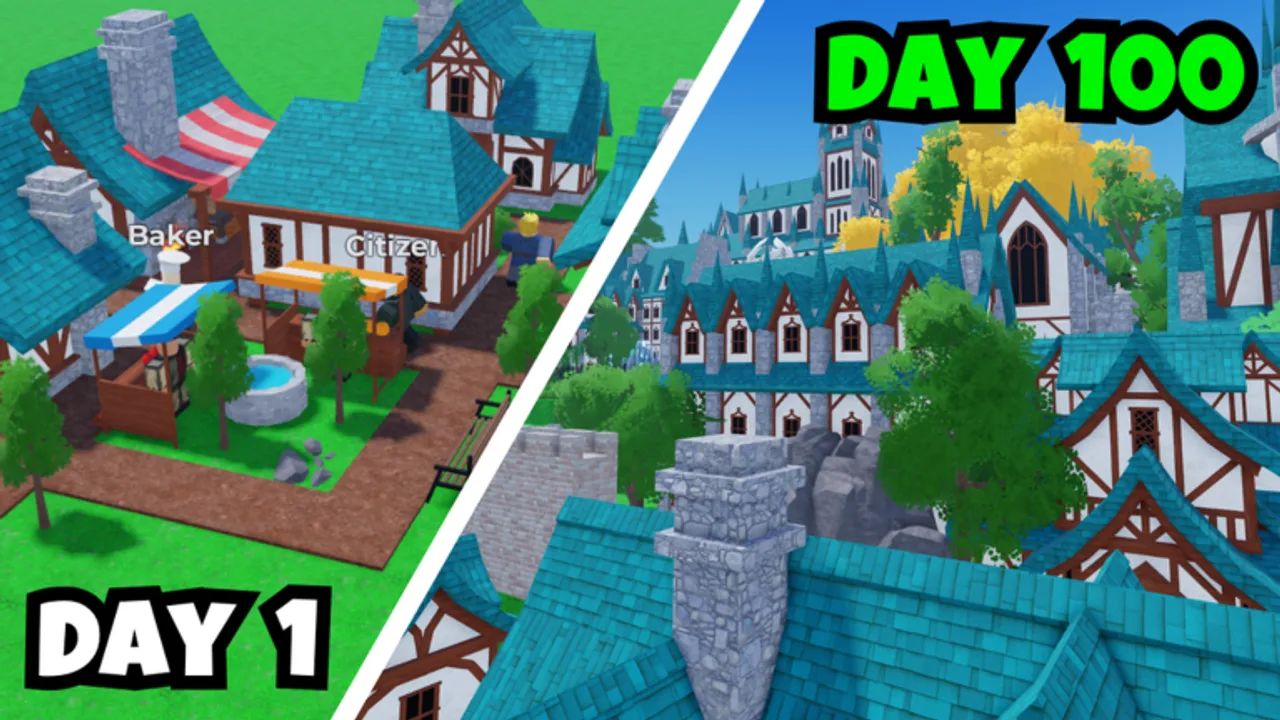
Most Kingdom Architect Tycoon players on Roblox use phones or tablets — which makes mobile controls the difference between steady income and missed collections. Finite Works built this medieval kingdom builder tycoon with placement-heavy UI typical of Roblox builder games: category tabs, ground taps, confirm buttons, and camera drags. The experience is in beta, so button sizes and positions can shift. This guide teaches durable touch patterns plus kingdom-specific habits that pair with Early Game Buildings and build layouts.
Device setup
- Install or update the Roblox mobile app. browser mobile is less stable for builder tycoons.
- Join Kingdom Architect Tycoon on the account that owns your kingdom progress.
- Complete the tutorial on mobile if possible so HUD scale matches your screen — switching devices later works but muscle memory resets.
- Enable auto-rotate if you prefer landscape; many players build in landscape for wider build menus.
- Read Getting Started for economy basics before optimizing touch flow.
Movement and camera
Virtual thumbstick
Roblox mobile defaults place a thumbstick on the left (often bottom-left). Drag to move your avatar through house and market rows for collection walks.
Tips:
- Use short laps — drag stick in a rectangle around income buildings instead of crossing decor mazes
- Lift thumb between taps to avoid accidental jumps into water or off paths you cannot click easily
- Increase Roblox Dynamic Thumbstick sensitivity only if your device feels sluggish
Camera with touch
| Gesture | Typical action |
|---|---|
| One finger drag on empty world space | Rotate/orbit camera |
| Pinch | Zoom in/out |
| Two-finger drag (some devices) | Pan view |
Tycoon habit: before buying land expansion, pinch zoom out until all owned tiles fit on screen — mobile players often mis-place on edge tiles they cannot see.
Night collections: day/night cycles can dim small payout icons. Turn device brightness up or collect during daytime sessions if prompts are hard to see.
Build menu on small screens
Categories — houses, markets, roads, towers, walls, gardens, terrain, water, trees, decor — usually stack as icons along an edge or bottom bar. Beta UI may compress labels to icons only.
Placement flow
- Tap build/shop entry (hammer, plus, or cart icon)
- Tap category
- Tap structure thumbnail
- Tap valid ground — preview ghost appears when placement is legal
- Tap Confirm, checkmark, or Buy if a second step appears
- Tap X or Back to exit category without buying
Mis-taps are expensive on mobile: fat-finger a decor piece and you lose cash that should fund markets on the building tier list. Zoom in before confirming expensive timers.
Rotate and cancel
Look for curved arrow buttons near the confirm bar. Tap rotate until roads align with existing paths before committing wall segments.
If a piece sticks to your cursor ghost, tap empty owned grass or the cancel chip — Roblox tycoons vary cancel behavior; re-open category if stuck after a beta update.
Terrain and water on touch
Sculpt tools use press-and-drag strokes. Use two-step planning:
- Pinch zoom on the district you are shaping
- Short strokes instead of long drags to avoid destroying market pads
- Undo if the experience provides it — not guaranteed in beta
Follow Decor and Terrain — terrain last, income first.
Collection on mobile
Mobile collection is the highest-friction step for many tycoon players.
Methods to try:
- Walk thumbstick through glowing buildings
- Tap building directly when a cash icon appears
- Tap floating Collect or $ prompts
Design kingdoms with one-thumb collection paths: markets in a line along the bottom of the screen in landscape, houses behind them. Avoid wrapping markets behind tall towers that block tap hitboxes.
Before logout for offline progression, run the lap twice — mobile missed taps are common when notifications interrupt.
Portrait vs landscape
| Orientation | Pros | Cons |
|---|---|---|
| Landscape | Wider build bar, more visible kingdom | Thumbstick farther from menu |
| Portrait | Reachable menus on tall phones | Narrow view, easy to place off-screen |
Landscape is recommended for sessions where you place more than ten structures. Portrait works for quick collect-only logins.
Roblox mobile system UI
- Roblox icon (top left) — settings, leave experience, report
- Chat bubble — opens keyboard; close chat before building or WASD-style keys may not apply (mobile has no WASD)
- Purchase prompts. gamepasses like Land Expansion (399 Robux), 2x Timer Speeds (999 Robux), and Infinite Money (2999 Robux) use Roblox native sheets — read the gamepass guide before confirming
Codes and shop overlap
No active codes as of August 2026. When promo codes arrive, the text box often sits near shop buttons — same hunt as PC but smaller targets. Use How to Redeem Codes mobile section alongside this page.
Performance tips
- Lower Roblox graphics quality if placement preview lags — lag causes double-taps that buy wrong items
- Close background apps before large decor sessions with many trees
- Rejoin after long sessions; mobile memory leaks can desync build menus in beta experiences
Mobile-specific layout rules
From earn money fast and the progression checklist:
- Fewer decor props between camera and collectors
- Shorter walls along the screen bottom for tap access
- Group timers so one collection lap finishes before starting a new category tab hunt
- Delay fancy water until markets are on the nearest edge
Compare with PC controls if you play both — PC grids do not always convert to thumb reach.
Accessibility and comfort
- Use a phone stand for long build sessions to reduce neck strain during pinch zoom
- Larger tablets (iPad, Galaxy Tab) approximate PC visibility — still use touch confirm discipline
- External Bluetooth controllers are rarely supported in Roblox tycoons; assume touch-only
Troubleshooting
Problem: Build menu missing after patch.
Try: Rejoin, check Roblox app update, read beta updates.
Problem: Cannot tap a market behind a wall.
Fix: Replan collector line — see Buildings Hub.
Problem: Purchased wrong decor.
Fix: Income first next session; no undo — standard tycoon risk on mobile.
Problem: Tempted by scripts for auto-collect.
Fix: Executors risk bans; a clean one-thumb lap beats account loss.
Related pages
- Controls Hub — PC vs mobile overview
- PC Controls — desktop reference if you alternate devices
- Buildings Hub — structure priority after controls click
- Codes — shop UI overlap
- Updates — mobile UI patch tracking
Mobile rewards players who build collect-first kingdoms, not maze-like castles. Master thumbstick laps, then spend on the decor that shows up in night screenshots.
Frequently Asked Questions
Quick answers for Kingdom Architect Tycoon players.
Is Kingdom Architect Tycoon playable on mobile?
Yes — Roblox mobile supports builder tycoons. UI may feel tight on small phones; landscape helps.
How do I collect money on mobile?
Walk near income buildings or tap collect prompts when they appear. Keep markets on an easy thumb path.
Why do my buildings place on the wrong tile?
Usually camera zoom or mis-tap. Pinch zoom out and confirm ground highlight before tapping Buy.
Do mobile controls differ from PC?
Same systems, different inputs. Compare [PC Controls](/players/pc-controls/) for keyboard shortcuts mobile lacks.