Kingdom Architect Tycoon Controls
Camera, building, and UI patterns for the medieval builder tycoon beta on every device.
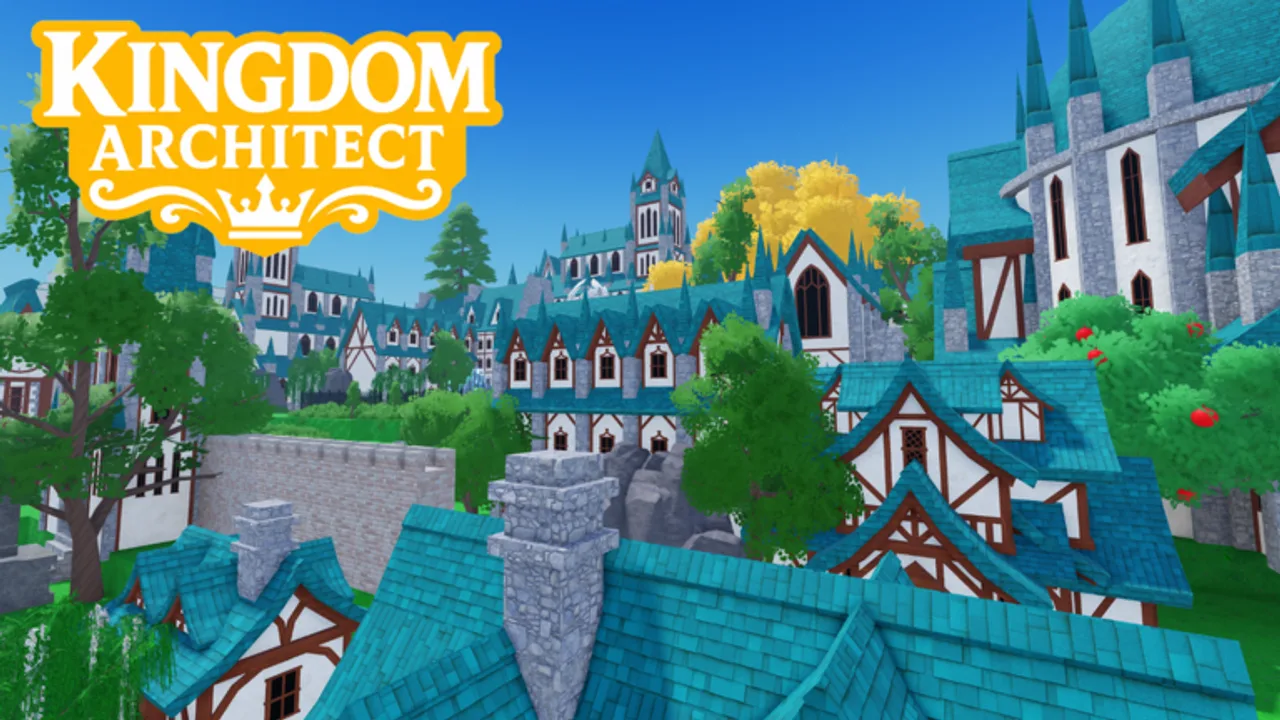
Controls decide how fast you turn timers into cash in Kingdom Architect Tycoon — a medieval kingdom builder tycoon on Roblox by Finite Works that is still in beta. Placement, camera movement, and collection paths feel familiar if you have played other Roblox builder tycoons, but exact keybinds and button positions can change between patches. This hub documents durable patterns plus platform-specific pages so you spend less time fighting the UI and more time placing houses and markets.
What you will find here
Use these sibling pages together:
- PC Controls — keyboard, mouse, and camera habits for desktop and laptop
- Mobile Controls — touch, thumb reach, and portrait vs landscape tips for phones and tablets
Both pages assume you already completed basic onboarding in Getting Started. Controls are not a substitute for building priority — pair them with Early Game Buildings so efficient inputs feed the right structures.
Why controls matter in a tycoon beta
Kingdom Architect Tycoon loops on place buildings → wait timers → collect payouts → expand land, with offline growth between sessions. Slow camera sweeps or missed collect buttons directly reduce income per hour, even when your building tier list order is perfect.
Common beta friction points:
- Build menu buried after a UI patch
- Rotate or confirm buttons moved on mobile
- Camera zoom limits on large kingdoms after land expansion
- Accidental placement on locked terrain outside owned plots
We describe typical Roblox tycoon patterns and flag where the live game may differ. When your screen disagrees with this wiki, trust the in-experience UI and note changes on beta updates.
Universal control concepts
These ideas apply on PC and mobile:
Build menu flow
Most builder tycoons expose categories — houses, markets, roads, walls, towers, gardens, terrain, water, trees, decor — in a side or bottom panel. Tap a category, tap a piece, tap valid ground to start a timer. Cancel/back lives on the same panel edge. If a piece refuses to place, check land ownership, adjacency rules, and whether another timer is blocking the slot.
Collection loop
Income structures flash or highlight when payouts are ready. Walk your avatar over them or click/tap prompts — exact method varies. Design layouts with one walking lane; see build layouts for collector-friendly grids.
Camera for placement
Top-down or angled views dominate placement. Zoom out before land expansion purchases so you see empty pads. Zoom in for decor precision on Decor and Terrain.
Day and night
The experience supports day/night cycles for exploration and screenshots. Lighting rarely changes controls, but night mode can hide small collect prompts — increase brightness on mobile if you collect after dusk.
PC vs mobile at a glance
| Action | PC (typical) | Mobile (typical) |
|---|---|---|
| Move avatar | WASD or arrow keys | Virtual thumbstick |
| Camera rotate | Hold right mouse drag | Single-finger drag on empty space |
| Camera zoom | Mouse wheel | Pinch |
| Select building | Left click menu | Tap menu icons |
| Place / confirm | Left click ground | Tap ground + confirm if prompted |
| Rotate piece | R key or on-screen rotate | Rotate button near confirm |
| Open shop / gamepass | UI button or Roblox menu | Same, smaller hit targets |
Exact keys may differ in beta — details on each platform page.
Controls and progression systems
Timers and gamepasses
Long build timers punish clumsy navigation. If you are constantly reopening menus, fix controls before buying 2x Timer Speeds (999 Robux). The gamepass helps; it does not replace layout discipline.
Offline growth
Offline progression continues while away, but many tycoons require a collection before logout for maximum gain. Learn your collect gesture on PC or mobile so session ends are clean.
Codes and shop UI
No active codes exist as of August 2026, but redemption uses the same HUD as shops. How to Redeem Codes shares UI hunting tips that overlap with build menu discovery.
Related wiki sections
- Buildings Hub — what to place once controls feel natural
- Progression checklist — ordered goals after UI comfort
- Gamepass guide — Land Expansion (399), 2x Timer Speeds (999), Infinite Money (2999)
- Codes — promo rewards when they appear
- Scripts — we do not recommend executors; legitimate controls beat risky tools
- Updates — patch notes when Finite Works remaps buttons
Staying current
Beta UI moves fast. Bookmark this hub and check beta updates after major patches. Report persistent mismatches by comparing your device recording to the platform page — we prioritize patterns that survive multiple tycoon genres, then tune for Kingdom Architect specifics when confirmed.
Pick PC or mobile above and practice one collection lap before your next building spree.
Frequently Asked Questions
Quick answers for Kingdom Architect Tycoon players.
Are Kingdom Architect Tycoon controls the same on PC and mobile?
Concepts match (move, camera, build menu, collect) but inputs differ. Use [PC Controls](/players/pc-controls/) or [Mobile Controls](/players/mobile-controls/).
Can keybinds change during the beta?
Yes. Finite Works may remap UI in patches. Follow [beta updates](/updates/beta-updates/) when buttons move.
How do I place buildings faster?
Zoom out, pre-plan pads in [build layouts](/guides/build-layouts/), and keep markets on one collector path.
Where is the build menu if I cannot find it?
Check screen edges for hammer, build, or shop icons — common Roblox tycoon pattern. See platform pages for details.